Back to guides
Using the human handover dashboard - Overview
The live agent dashboard allows you to view and manage conversations. All conversations, whether AI-led or handled by live agents, are visible here, ensuring a seamless transition between AI chatbot interactions and human support.
The live agent dashboard allows you to view and manage conversations. All conversations, whether AI-led or handled by live agents, are visible here, ensuring a seamless transition between AI chatbot interactions and human support.
To access the dashboard, click on the Human Handover button and select Open Live Agent Dashboard


Once live agents log in, the dashboard will appear. The Overview tab allows you to monitor flagged conversations where a user has requested a live agent

Viewing conversations
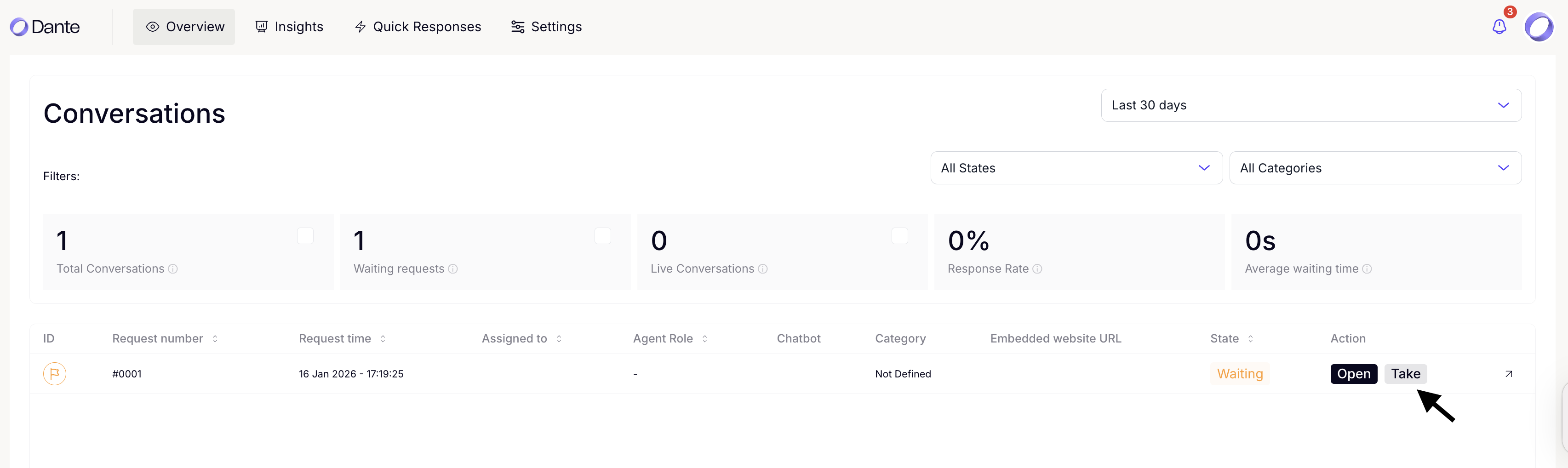
To view the conversation, click Open under the Action column.

Taking over conversations
If there are live conversations, a live agent may take over by clicking Take under the Action column. The user may then interact directly with the live agent. The state will change from ‘Waiting’ to ‘Taken’.

Conversation States
Here is a list of possible states for your conversations:
- Waiting: The conversation needs a live agent to pick it up.
- Taken: A live agent has taken over the conversation.
- Resolved: A live agent has marked the conversation as resolved.
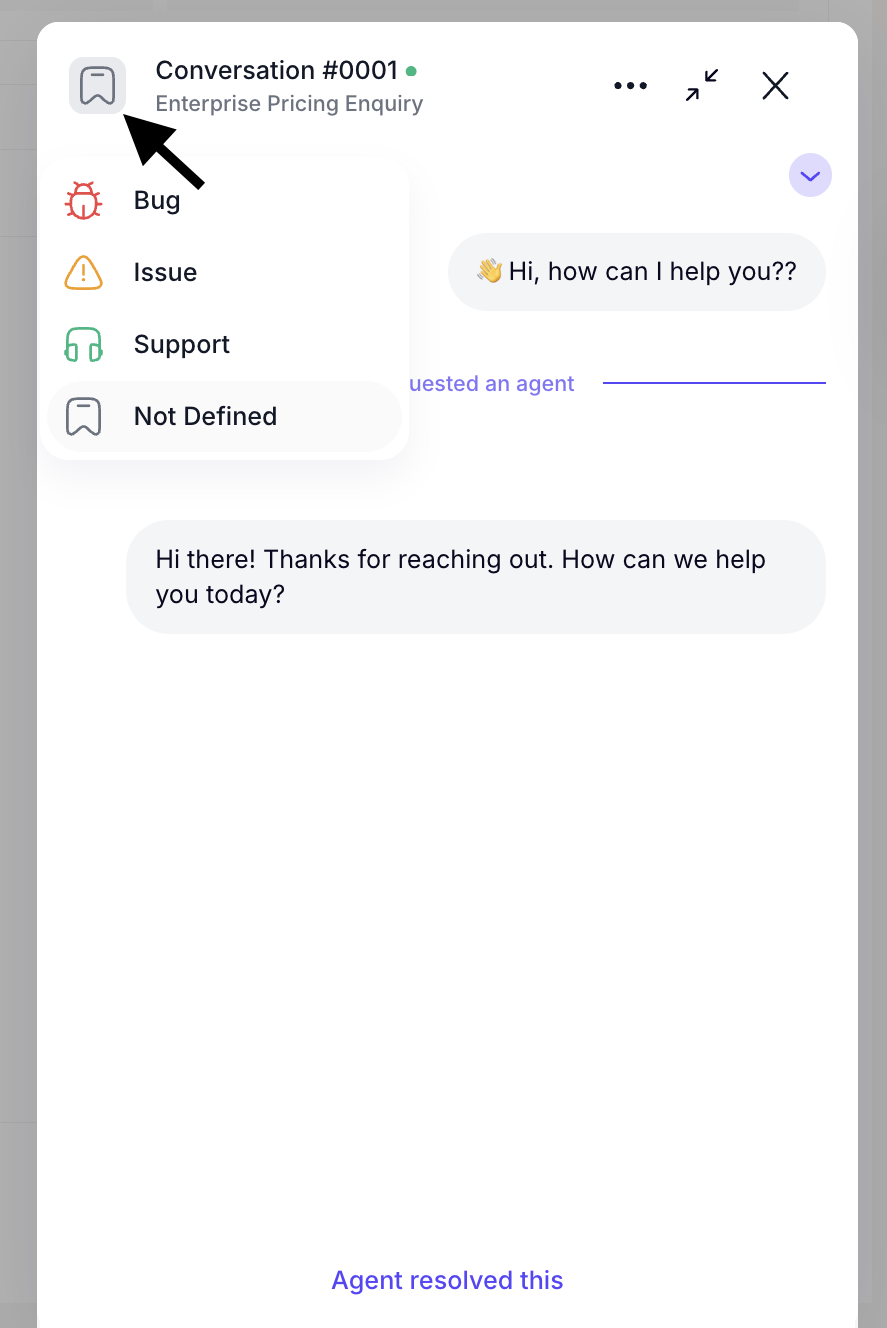
Assigning categories
Categories are an easy way to organize your conversations by topic, each with its own color. You can assign different categories to flagged conversations for better organization. This helps you see what kind of topics keep coming up in the Insights tab.