Back to guides
Step 3 - Define Personality
The first step to customizing your AI chatbot is to amend the font, font size, and colors to ensure the style is tailored to your needs.
This section helps you control how your AI chatbot speaks, behaves, and responds in different situations. You can choose a ready made personality, edit an existing one, or create a new profile from scratch. As you make changes, you can test the personality in the live preview on the right.
How to access personalities
You can open this view in two ways:
- Click Define Personality from your chatbot dashboard setup steps
- Or open Personalities from the left side menu at any time

- Choose an existing personality
In the Personalities view, you will see a list of personality cards (for example Analytical, Sympathetic, Creative). Click any card to open and edit it.

- Create a new personality
Click Create to start a new profile. This is useful if you want to set up your unique tones for different chatbots or use cases.

Personality profile settings
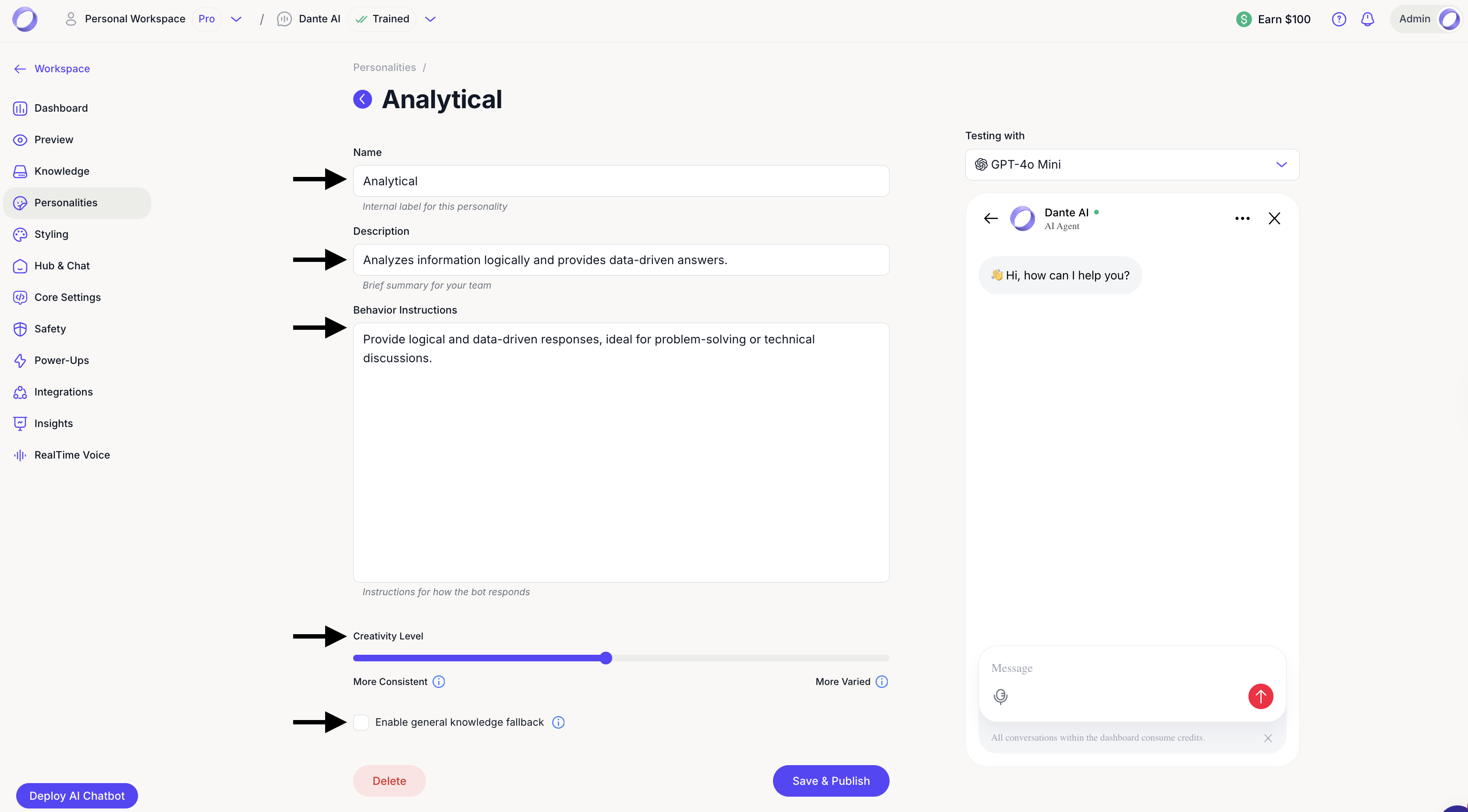
When you open a ready made personality or create one from scratch, you can edit:
- Name
An internal label for your team to recognize the personality.
- Description
A short summary of what the personality is designed for.
- Behavior instructions
The most important field. Write clear instructions that define tone, style, and rules for how the AI chatbot should respond.
Creativity level
Use the slider to control how closely the AI chatbot follows the wording of your training data. Lower levels produce more consistent responses that closely reflect the language and structure of your uploaded documents.
Higher levels allow for more varied and flexible language, resulting in more creative responses that may go beyond the exact phrasing of your training data.
Enable general knowledge fallback
When enabled, the AI chatbot can use general knowledge to respond when the answer is not found in your uploaded data. This can be helpful for broader questions, but it may reduce how strictly the chatbot stays within your knowledge sources.
Test in the preview
Use the preview panel on the right to try questions and check tone before saving.
Save and publish
Click Save & Publish to apply your personality changes.
Next steps: Deploy chatbot
Once your personality is ready, move on to Deploy chatbot to share your AI chatbot on your website or via link.
For additional support and to connect with other users, join our Discord community.