Back to guides
How to edit the data types of your Lead Gen form
By default, the name and email data types are set as mandatory. You can add or remove data types and modify the labels. You have the option to select from standard data types such as name, phone, and email or to add a custom field that captures additional information relevant to you.
By default, your Lead Generation form includes common fields such as email and name. You can easily edit these fields, change their order, and add or remove fields based on the information you want to collect.
To edit the fields in your Lead Generation form, make sure the Lead Generation feature is toggled on, then follow these steps:
- Click on any existing field to edit it.
- Choose the Field Type (for example: Email, Text, Phone, or Multiple Choice).
- Update the Label, which is used to identify the data in exports and integrations.
- Edit the AI Prompt, which defines what the AI chatbot says when asking for this information.
- Reorder fields by dragging and dropping them using the handle on the left side of each field.
- Add a new field by clicking Add input field.
- Remove a field by clicking the trash icon.
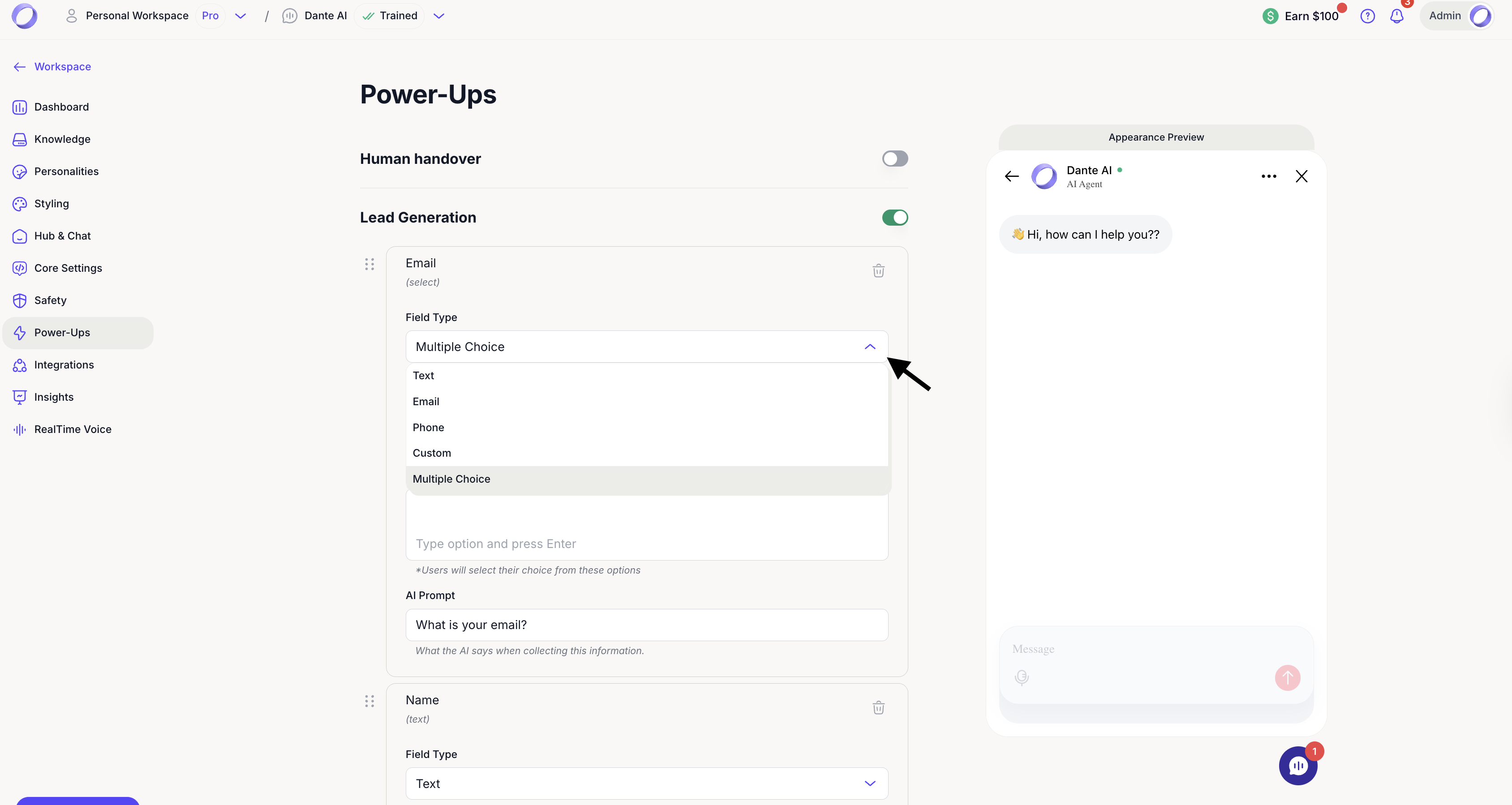
The Lead Generation form appears in your deployed AI chatbot (for example, on your website or via a share link). It does not appear as a separate form inside the Dante AI dashboard.
Next steps: Safety and security
Congratulations! You’ve streamlined your lead generation process. Now, let's move on to the next step: safety and security to learn more about GDPR compliance, managing usage and how to add a password to your AI chatbot if you wish to limit access to authorized users only.
If you get stuck at any point, you can get assistance by clicking on the Learning Hub pop-up at the top right corner of the app.
For additional support and to connect with other users, join our Discord community.