Back to guides
How to edit the contents of your Lead Gen form
You can edit the form title, which indicates what the form is about, and provide user consent text to allow users to approve how their data will be used. To edit the contents of your lead gen form, first, ensure the Lead Gen feature is toggled on.
Customizing your Lead Gen form
Once Lead Generation is enabled, you can customize what your form collects and when it appears.
To edit your Lead Gen form:
- Click Add input field to add the fields you want users to fill in.

- When you click Add input field, a new field editor opens where you can fully configure the data you want to collect.For each input field, you can:
- Select the Field Type
Choose the type of information you want to collect, such as text, email, or other formats. This controls validation and the keyboard shown on mobile devices.
- Add a Label
This is an internal label used to identify the data in exports and integrations. Users do not see this label.
- Write an AI Prompt
Define what the AI chatbot says when asking the user for this information, for example: “Please enter your email address.”
- Select the Field Type

- Add a Consent Message to explain why you are collecting their information.
- Under When to Show Lead Capture Form, choose when the form should appear (for example Show at the start).
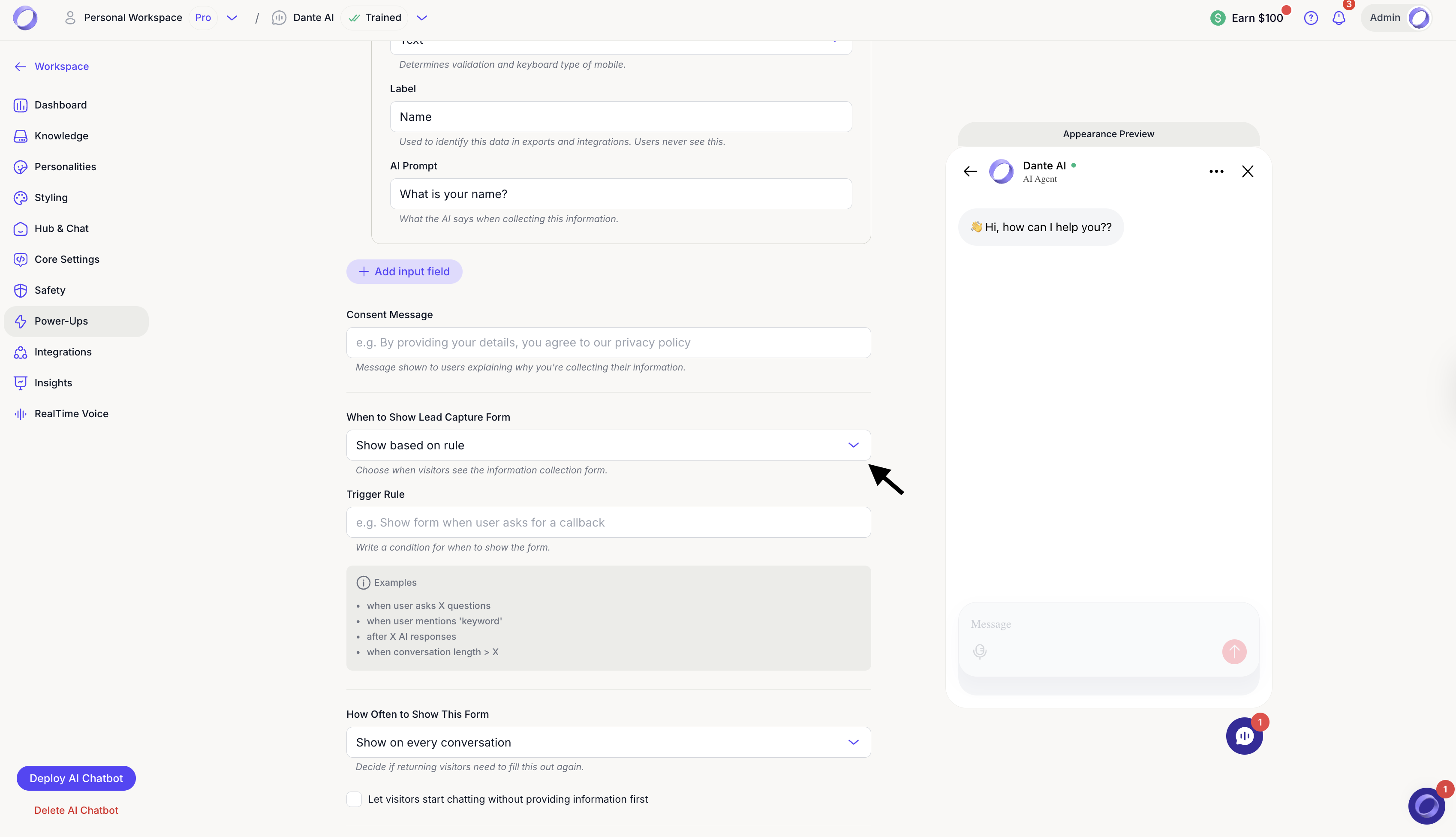
- Instead of showing the lead capture form immediately, you can choose to display it based on a rule.To do this:
- Under When to Show Lead Capture Form, select Show based on rule.
- In the Trigger Rule field, describe in natural language when the form should appear.
- When a user asks a specific number of questions
- When a user mentions a specific keyword
- After a certain number of AI responses
- When the conversation reaches a certain length
- Under How Often to Show This Form, choose how often returning users should see it.
- If you want users to start chatting without filling in the form, select Let visitors start chatting without providing information first.
- Click Save & Publish.

Next steps: Edit lead data types
Awesome job setting up your Lead Gen form.
Next: Continue readinghow to edit the data types of your Lead Gen form.
For additional support and to connect with other users, join our Discord community.