Back to guides
Step 2 - Make It Your Own
Customizing your AI chatbot’s personality is one of the most important steps for refining its abilities. Your base prompt is the main set of instructions you provide to guide your AI chatbot's behavior and responses. It should include specific instructions about tone, style, personality traits, and other characteristics to ensure it aligns with your brand. Think of it as the foundational guide that shapes how your AI chatbot interacts with users.
The Styling (Make it Your Own) step lets you fully customize how your AI chatbot looks and feels. All changes are shown instantly in the live preview on the right.
How to access Styling?
From your AI chatbot dashboard, click Make it your own, or open Styling anytime from the left-hand menu.

- Display name
Set the name shown in the chat header and hub. You can also choose whether the chatbot name is displayed in the hub.

- Logos
Upload your branding to white label the experience:
- Hub logo: shown on the home screen
- Chat logo: shown inside the chat
You can link the logo to your website so it opens in a new tab when clicked.

- Colors
Customize your chatbot’s color palette:
- Accent color (buttons, icons, highlights)
- Font color (text across the widget)
- Background colors (hub and chat)
- Message colors for AI, human support, success, error, and alert states

- Font
Choose the font family and adjust the font size to match your brand style.

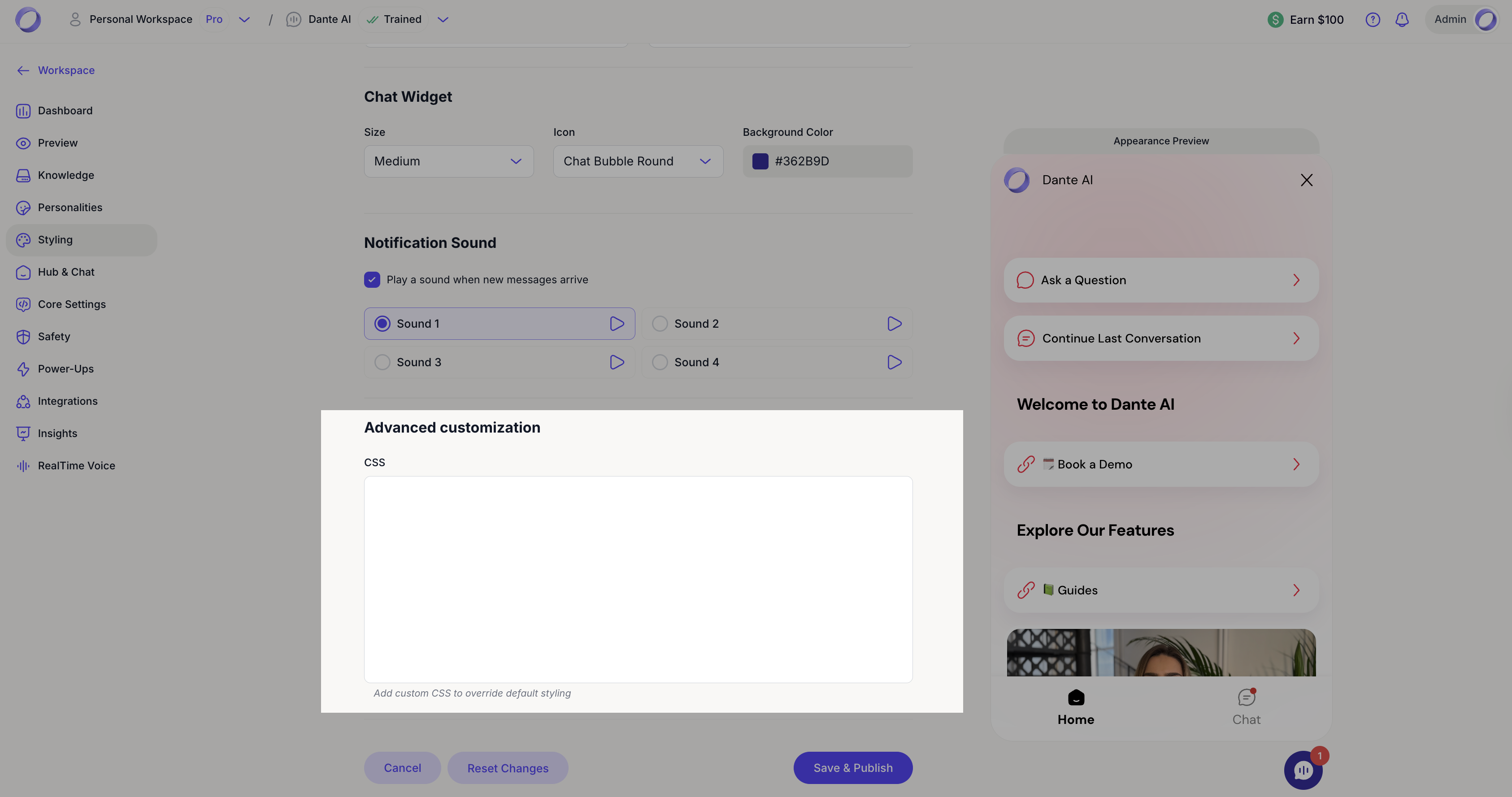
- Chat widget
This section controls how the chat bubble looks on your website.
- Size: choose how big the chat bubble appears (Small, Medium, Large, or Extra Large).
- Icon: select a chat bubble style (Chat Bubble Round, Chat Bubble Square, Paper Plane, Phone and Chat), or choose Upload Image to upload your own icon or brand logo.
- Background color: set the color of the chat bubble to match your brand.
- Size: choose how big the chat bubble appears (Small, Medium, Large, or Extra Large).


- Notification sound
Enable this option to play a sound when a user sends a message.
You can choose from multiple sound options and preview each one before selecting it.

- Advanced customization (CSS)
Use this section to add custom CSS and fine tune the design beyond the default styling options. If you are not sure what to write, you can use generative AI tools (like ChatGPT or Claude) to help you create the CSS you need.
You can also contact our support team at support@dante-ai.com with your request, and we will help you with the specific custom CSS.
Next steps: Define Personality
Great job. You have now customized your AI chatbot’s styling and branding. Next, click Define personality to set how your AI chatbot speaks and behaves.
For additional support and to connect with other users, join our Discord community.