Back to guides
Customizing and white-labeling your AI chatbot
Explore the world of customized AI chats with insights for beginners and experts alike. Uncover the best strategies on how to enhance your AI chatbot’s personality to elevate your business game.
Customizing and white-labeling your AI chatbot is essential for creating hyper-personalized interactions that reflect your brand’s identity and meet your needs. Dante AI allows you to do both.
Customization involves adjusting the AI chatbot's colors, fonts, behavior, and responses and adding lead-generation forms to create an engaging user experience. White-labeling goes further by replacing Dante AI branding with your own, including changing the logo, removing 'Powered by Dante AI,' and customizing the URL. By customizing and white-labeling, you ensure your AI chatbot fully aligns with your brand.
Here’s what you can expect when you personalize your AI chatbot:
- Achieve brand consistency, ensuring your AI chatbot matches your brand’s look and feel.
- Tailor the chatbot’s personality, responses, and tone of voice to resonate with your users.
- Incorporate lead generation forms into your AI chatbot to capture user information, helping you build a database of potential customers for effective follow-up.
- Create a personalized URL for your AI chatbot and make it easier for users to access.
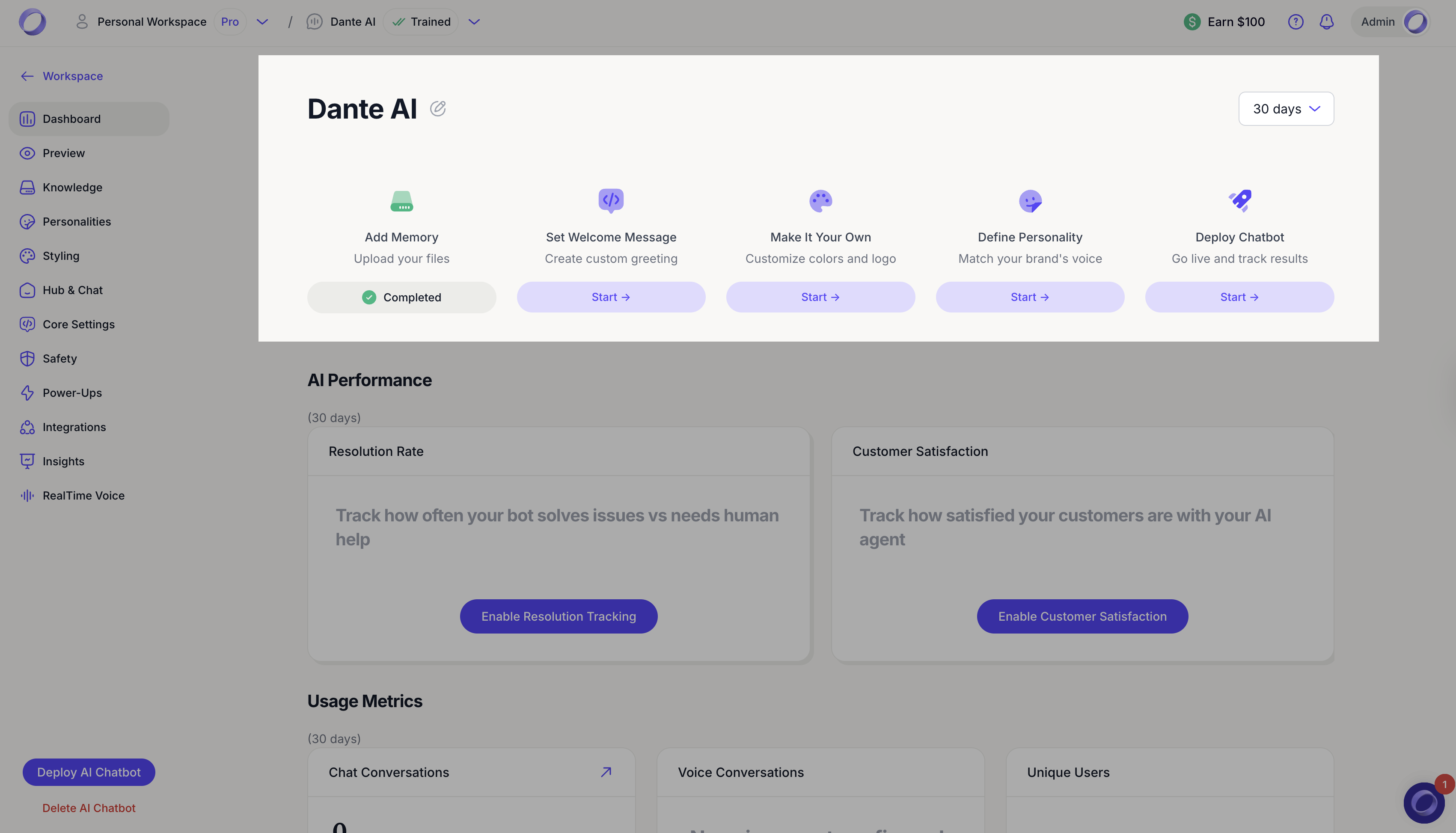

In your Dante AI chatbot dashboard, you can customize and manage your AI chatbot using the menu on the left. Each section controls a different part of how your AI chatbot looks, behaves, and performs:
- Dashboard
Your main overview. You will see the setup steps (Add Memory, Set Welcome Message, Make It Your Own, Define Personality, Deploy Chatbot) and key performance metrics once your AI chatbot is live.
- Knowledge
Add and manage your AI chatbot’s memory by uploading files, adding links, or connecting data sources. You can update and expand knowledge anytime, even after launch.
- Personalities
Control how your AI chatbot communicates. Use this to adjust tone, style, and behavior, and refine it over time based on your needs.
- Styling
Customize the visual look of your AI chatbot, including colors, fonts, and branding elements. This is where you make it match your company style.
- Hub & Chat
Manage the home screen experience before users start chatting. Enable or disable the Hub, allow conversation history, customize quick action buttons, set tab order, and add Hub content before publishing.
- Core Settings
Control core setup items such as the welcome message, prompts, and key chatbot settings.
- Safety
Set boundaries for your AI chatbot. This helps ensure it responds appropriately and follows your rules.
- Power Ups
Enable extra features like lead capture, meeting booking, human handover and other enhancements to support your business goals.
- Integrations
Connect Dante AI to your tools and workflows so your AI chatbot can work with the platforms you already use.
- Insights
Review conversation data and performance insights so you can improve the AI chatbot over time.
- Real Time Voice
Enable voice conversations so users can speak directly with your AI chatbot for a more natural experience, with human handoff when needed.
This section will guide you through each step in which you can personalize your AI chatbot.