Back to guides
How to show sources
This feature identifies the source of each answer provided by your AI chatbot. Each response can include its own citation, displaying the relevant files and page numbers from the AI chatbot memory from which the information was retrieved. Note that the sources only works with GPT-4 models and is available on the Premium and Ultra plans.
This feature helps admins trace where your AI chatbot’s answers are coming from. It shows the source used to generate a response, so you can verify accuracy and improve your chatbot over time.
When Sources are available, each cited response will point to the relevant content from your chatbot’s knowledge, such as the file or URL it was pulled from. This is especially useful during the refinement process, because it lets you quickly find what needs to be updated.
How to use Sources for improving answers:
- Open your AI chatbot in the Dante AI dashboard as an admin.
- Go to your chat records and open a past conversation.
- Select the message you want to review and open the Sources view to see where that answer came from.
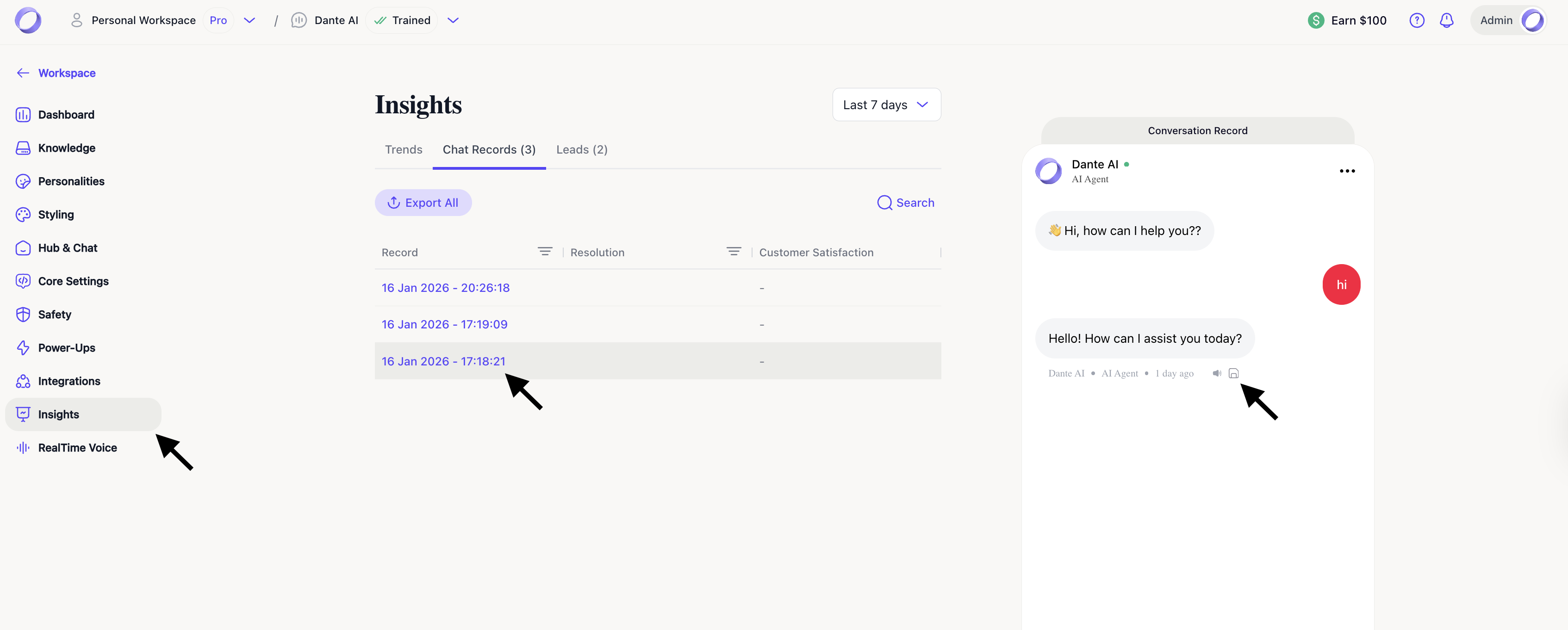
- If the response is not correct or needs adjusting, update the original source content by editing the file or URL in your Knowledge section, or remove the source entirely.
- Retrain your AI chatbot so it can use the updated information.
Why this matters:
Sources make it easier to understand why the AI chatbot answered a certain way and to fix issues at the root. Instead of editing the answer manually, you can update the content the AI chatbot learned from, which improves future conversations automatically.
Next steps: Manage your Dante AI account
Great job! In the next guide, we'll walk you through managing your Dante AI account, such as editing your profile, changing your password, accessing the billing dashboard, and more. Click Next to get started.
If you get stuck at any point, you can click on the Learning Hub pop-up at the top right corner of the app for assistance.
For additional support and to connect with other users, join our Discord community.