Back to guides
Configuring Hub & Chat
Learn how to customize your AI chatbot’s Home screen and chat flow to guide users, highlight key actions, and improve engagement.
The Hub & Chat section allows you to control how users enter and interact with your AI chatbot. This is where you design the first impression, define navigation, and guide users smoothly into conversations.
You can access this section by selecting Hub & Chat from the left-hand menu after opening an AI chatbot.

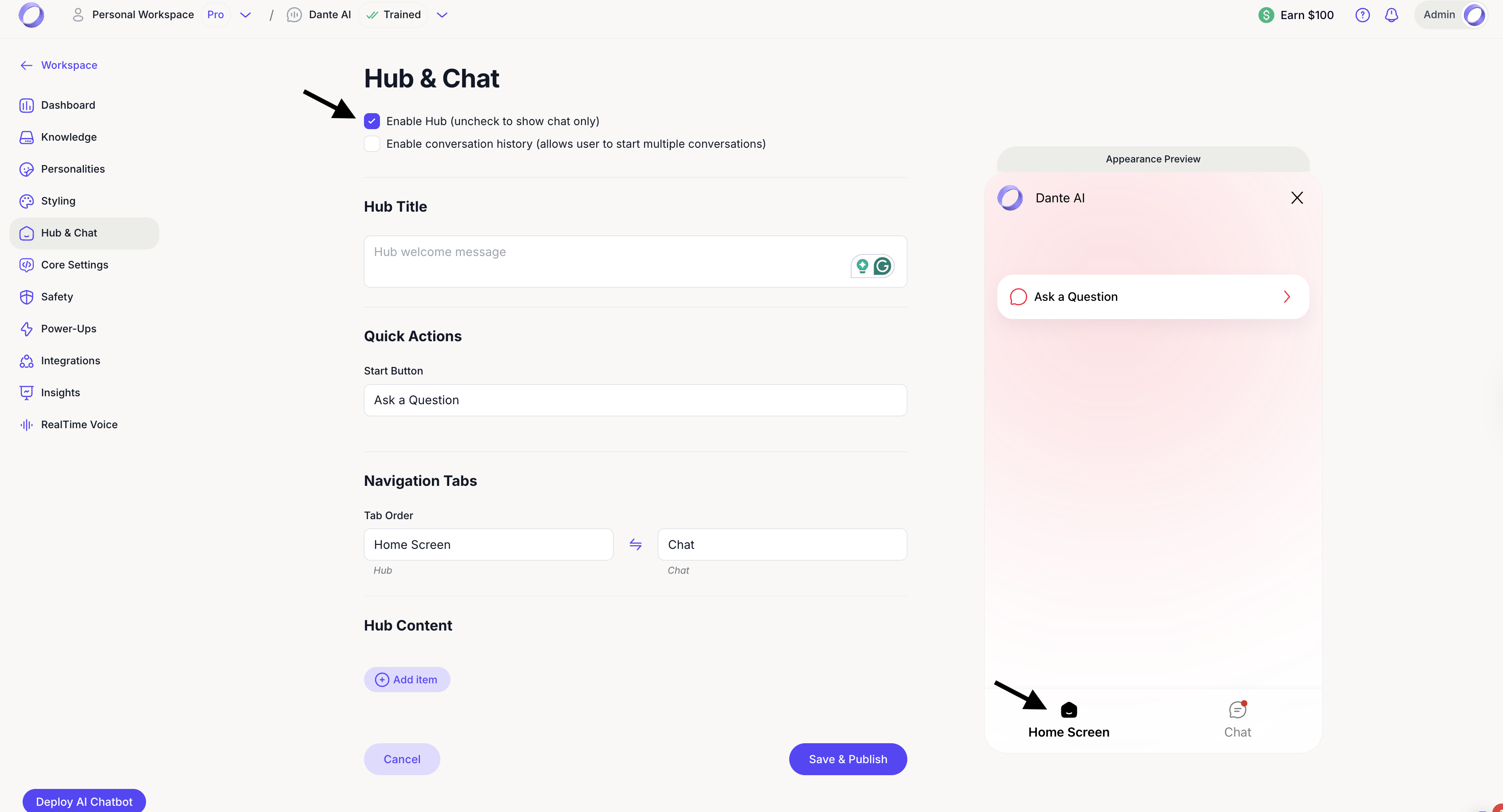
At the top of the page, you’ll find two key options:
- Enable Hub
When enabled, users first see a home screen before entering the chat. If disabled, users are taken directly into the chat interface.
Why use the Home screen?
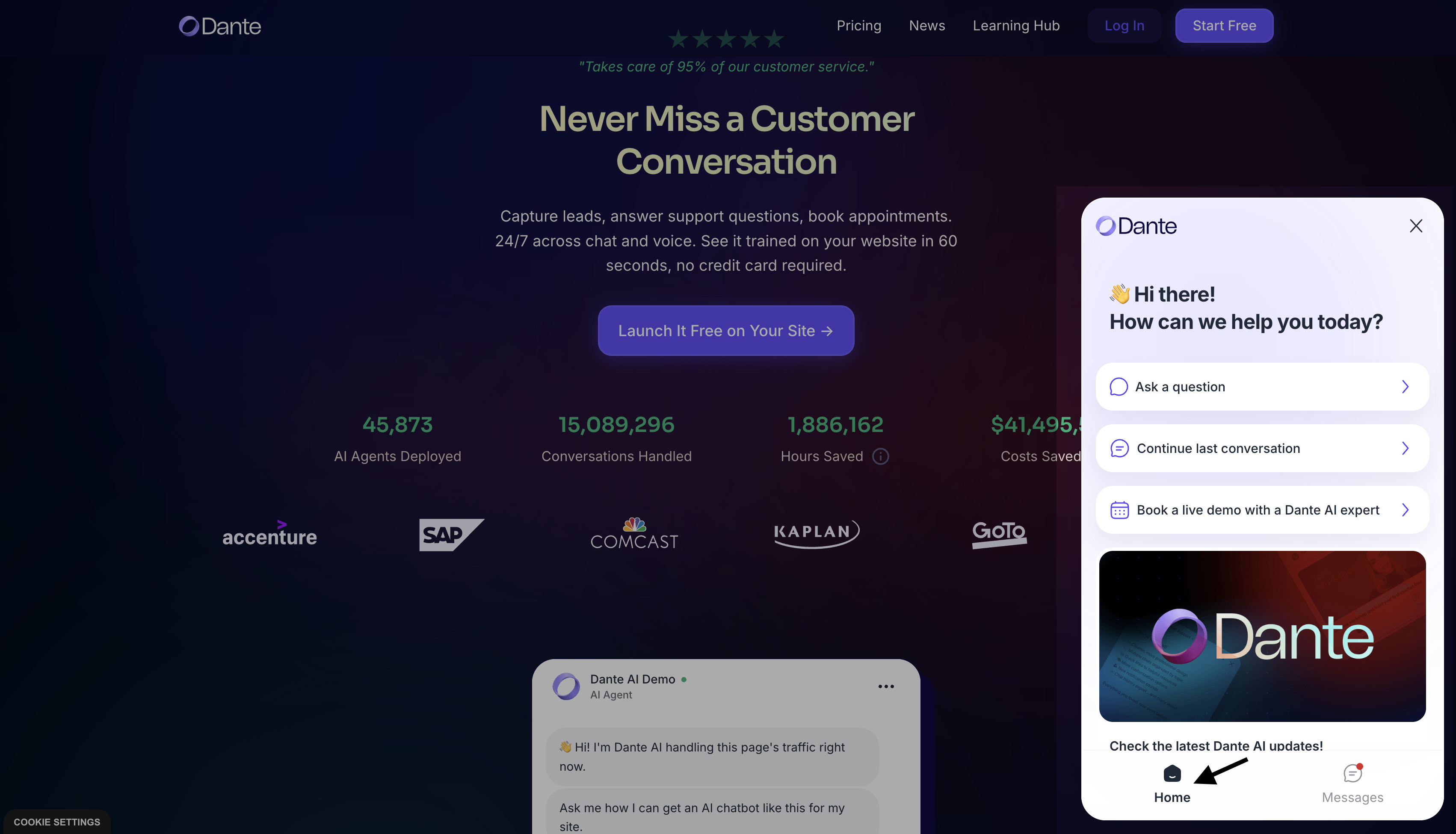
The Home screen is the first view users see when they open your AI chatbot. It helps guide users before they start typing and makes it easier for them to take action quickly.
What you can use it for?
- Highlight important brand updates or announcements
- Add quick actions like Continue last conversation, or Book a demo
- Surface common questions to help users get answers faster
- Share useful links, articles, or resources
Example:
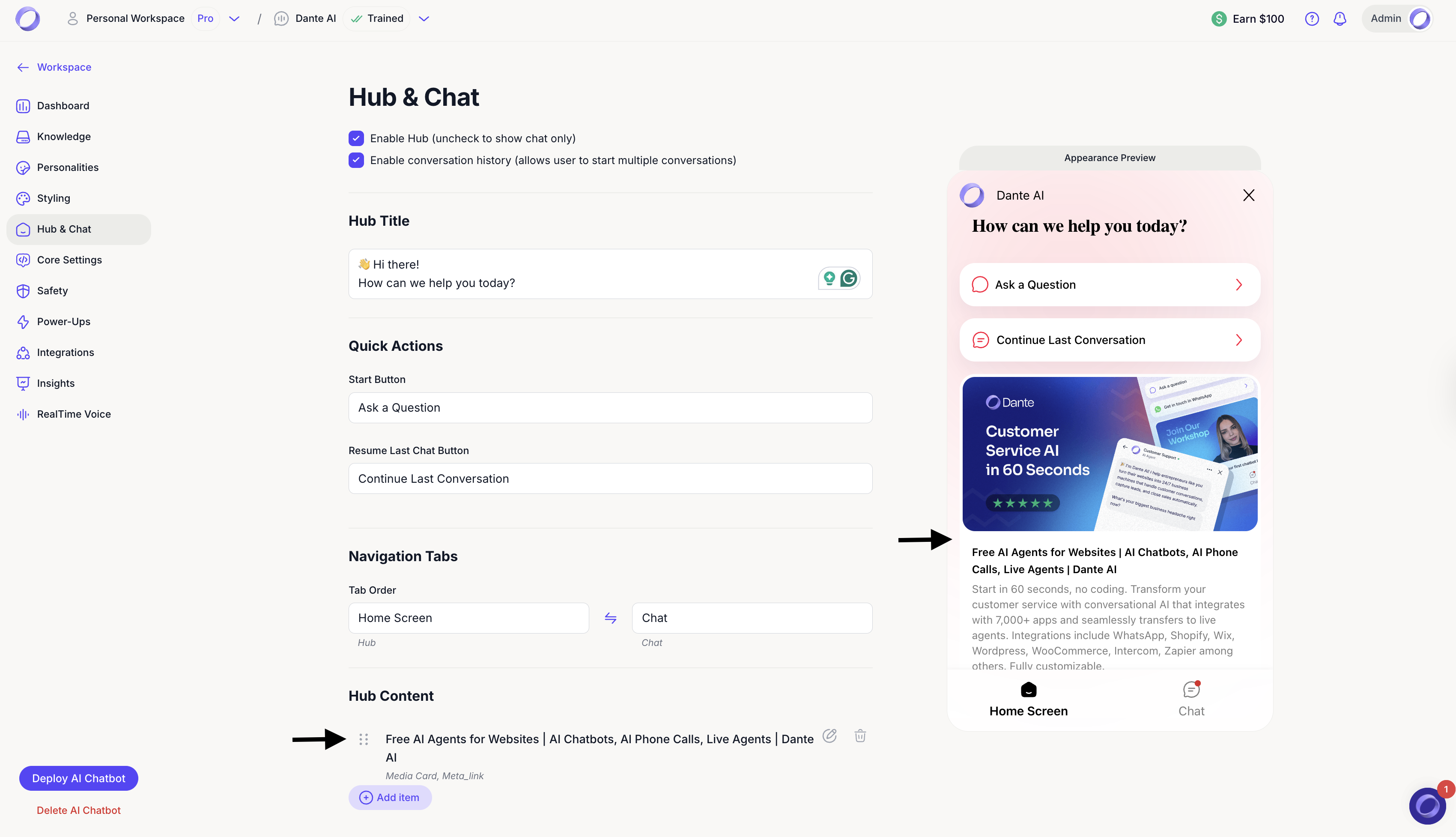
Take a look at how the Dante AI chatbot is configured on ourwebsite. The Home screen welcomes users, highlights updates, suggests common questions, and includes a clear call to action to book a live demo.
- Enable conversation history
Allows users to start and return to multiple conversations instead of being limited to a single session.

Hub Title
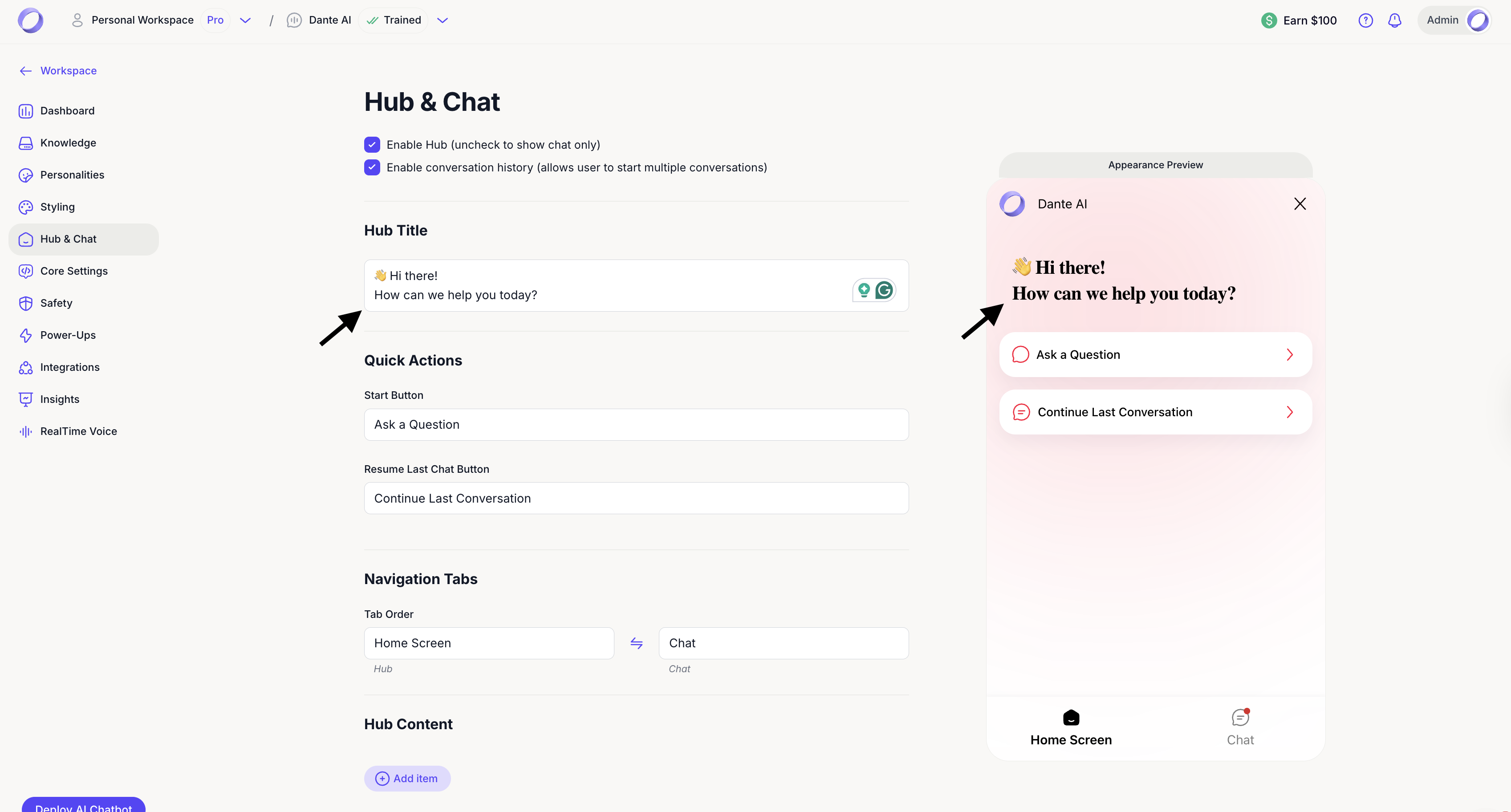
The Hub Title is the welcome message shown on the home screen.
Use this space to clearly explain what your AI chatbot can help with or to greet users in a friendly, branded way.
Quick Actions
Quick Actions define the primary buttons users see when they open the chatbot:
- Start Button
Controls the main call-to-action, such as Ask a Question. - Resume Last Chat Button
Allows returning users to continue their previous conversation.
These buttons reduce friction by guiding users to the most relevant actions, and their wording is fully customizable to match your brand and priorities.
Navigation Tabs
Navigation Tabs let you control how users move between the Home Screen and the Chat:
- You can reorder tabs to decide which view appears first.
- This gives you flexibility depending on whether you want users to explore content first or jump straight into conversation.

Hub Content
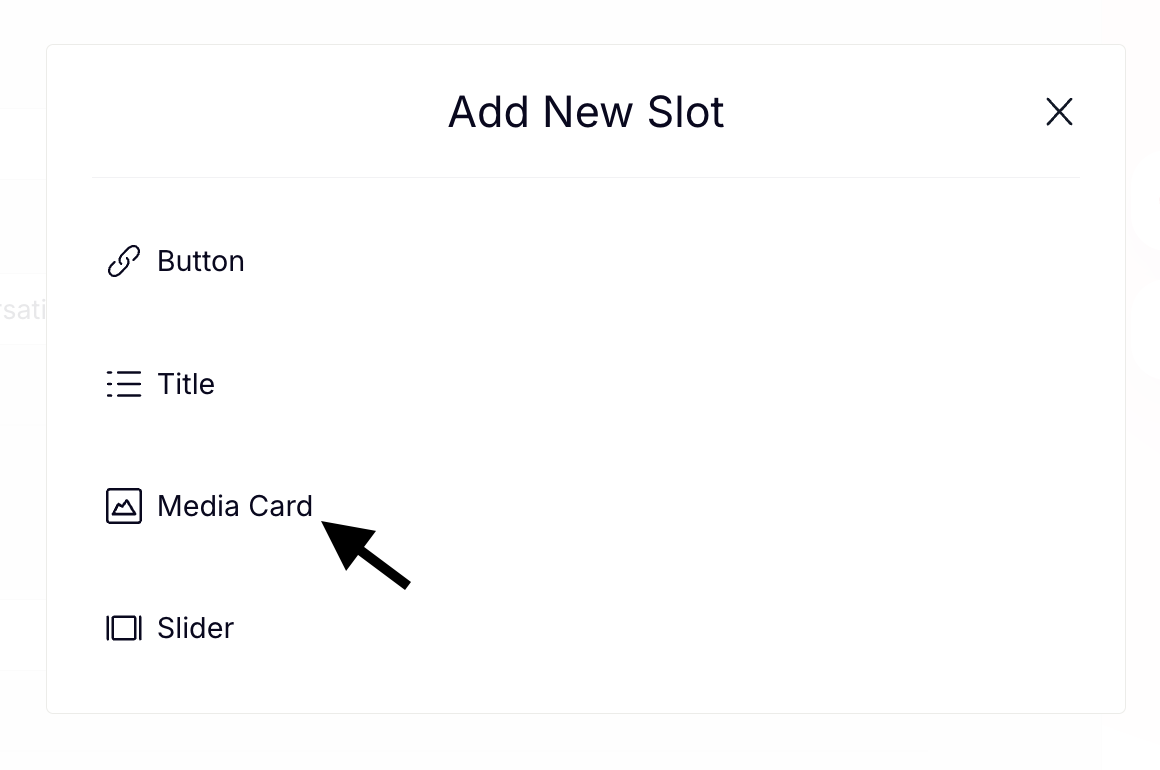
Under Hub Content, you can add rich, visual elements to your home screen by clicking Add item. Available content blocks include:
- Title – Add headings to structure your hub content and group multiple links underneath, such as user guides.
- Button – Link users to external pages or specific actions e.g. "Book a demo".
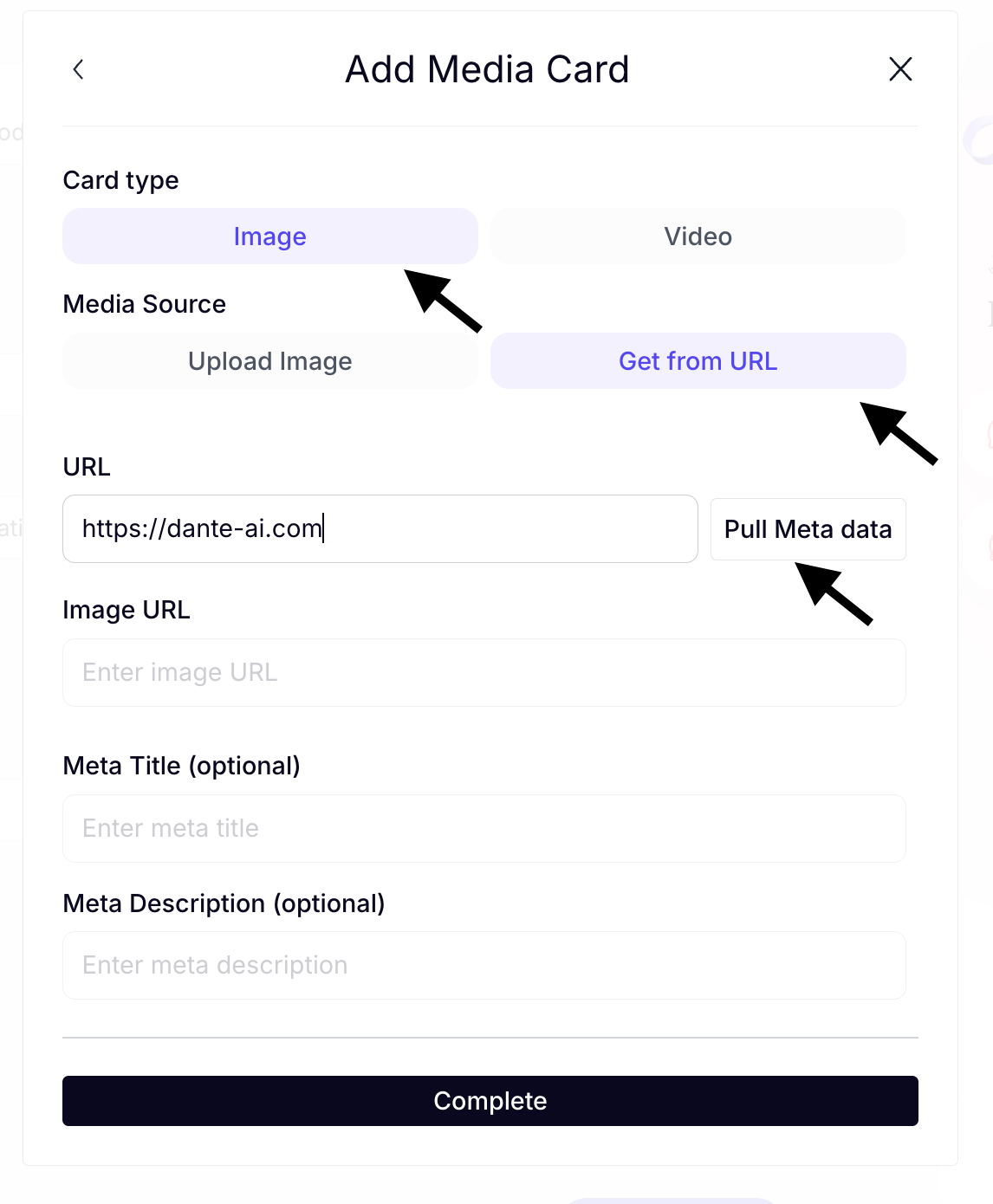
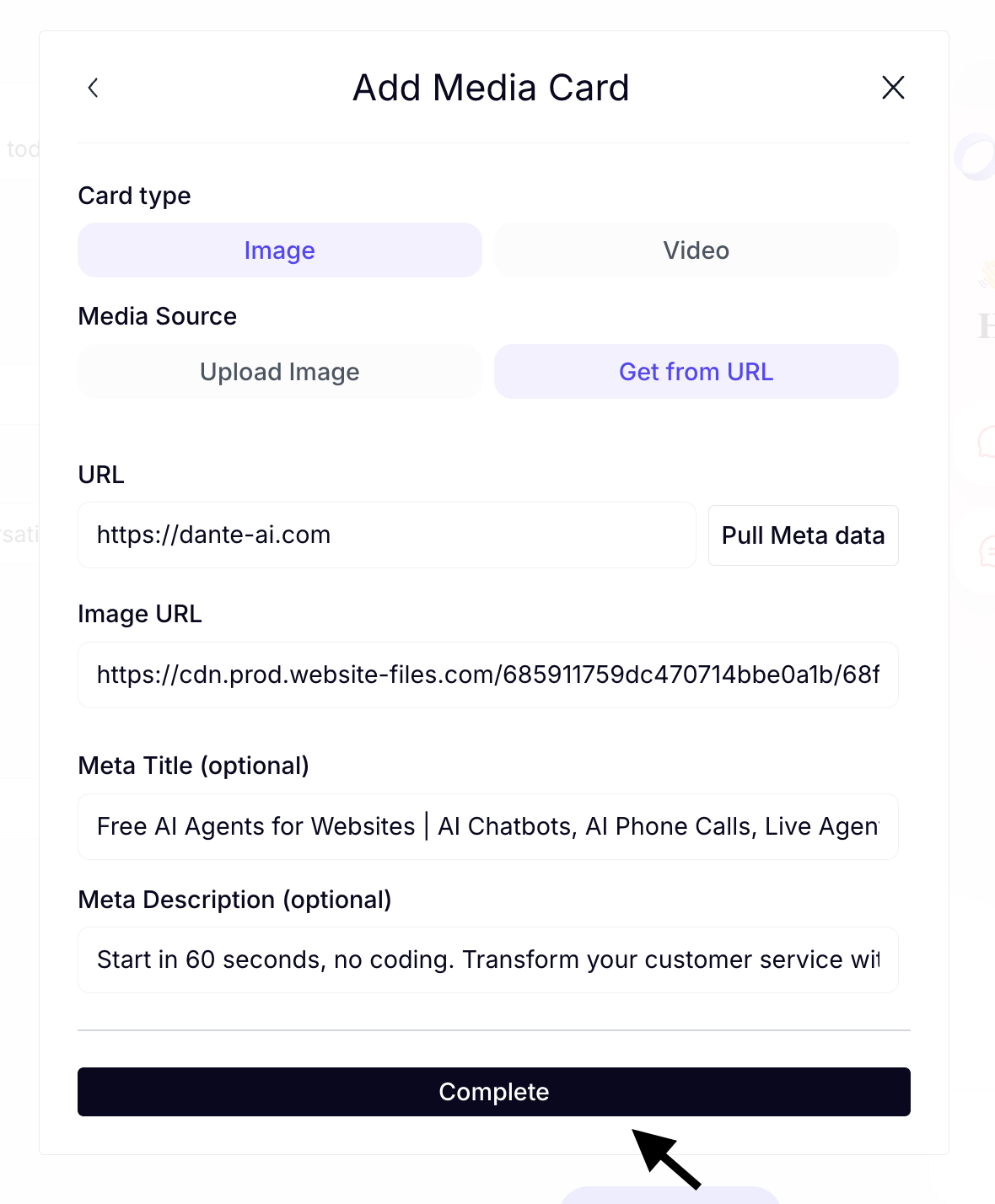
- Media Card – Display images or videos with optional descriptions and links.
- Slider – Showcase multiple links with rich media in a scrollable format e.g. "Latest blogs".
These elements help you create a more engaging, guided experience before users start chatting.


Save and Publish
Once you’ve customized your Hub and Chat settings, click Save & Publish to apply the changes to your AI chatbot.

Next steps
Next, explore Real-Time Voice to enable spoken conversations and create a more natural, hands-free experience with your AI chatbot.