Back to guides
Navigating the Dante AI interface
Learn how to navigate the Dante AI interface, understand the Workspace and Dashboard, manage your AI chatbots, and track performance and usage with ease.
When you log in to Dante AI, you’ll first land in the Workspace. The Workspace is your central view for managing all your AI chatbots and accessing high-level performance data before editing any individual chatbot.
Workspace overview
In the Workspace, you can:
- View all AI chatbots connected to your account
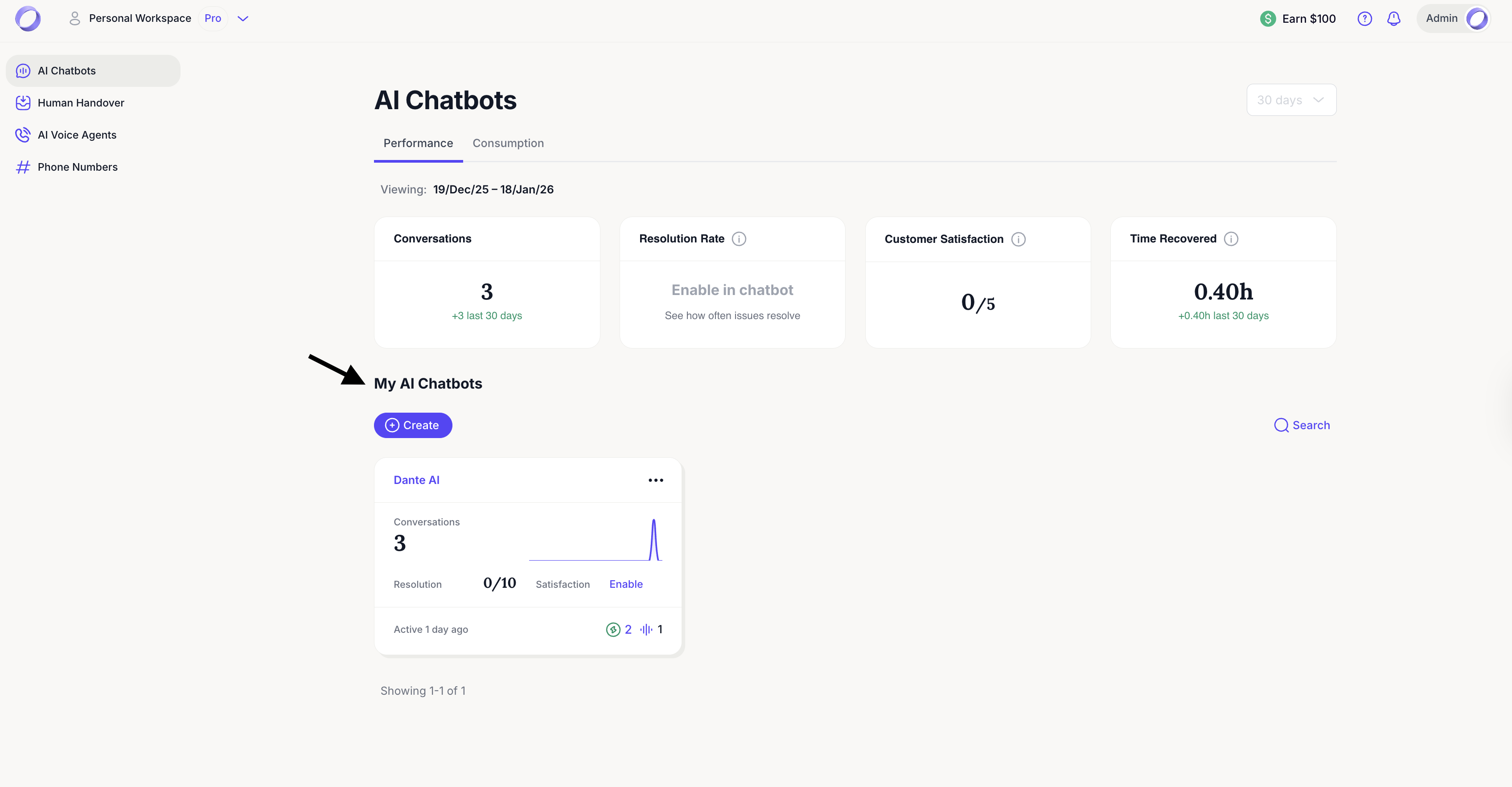
- Search for a specific AI chatbot

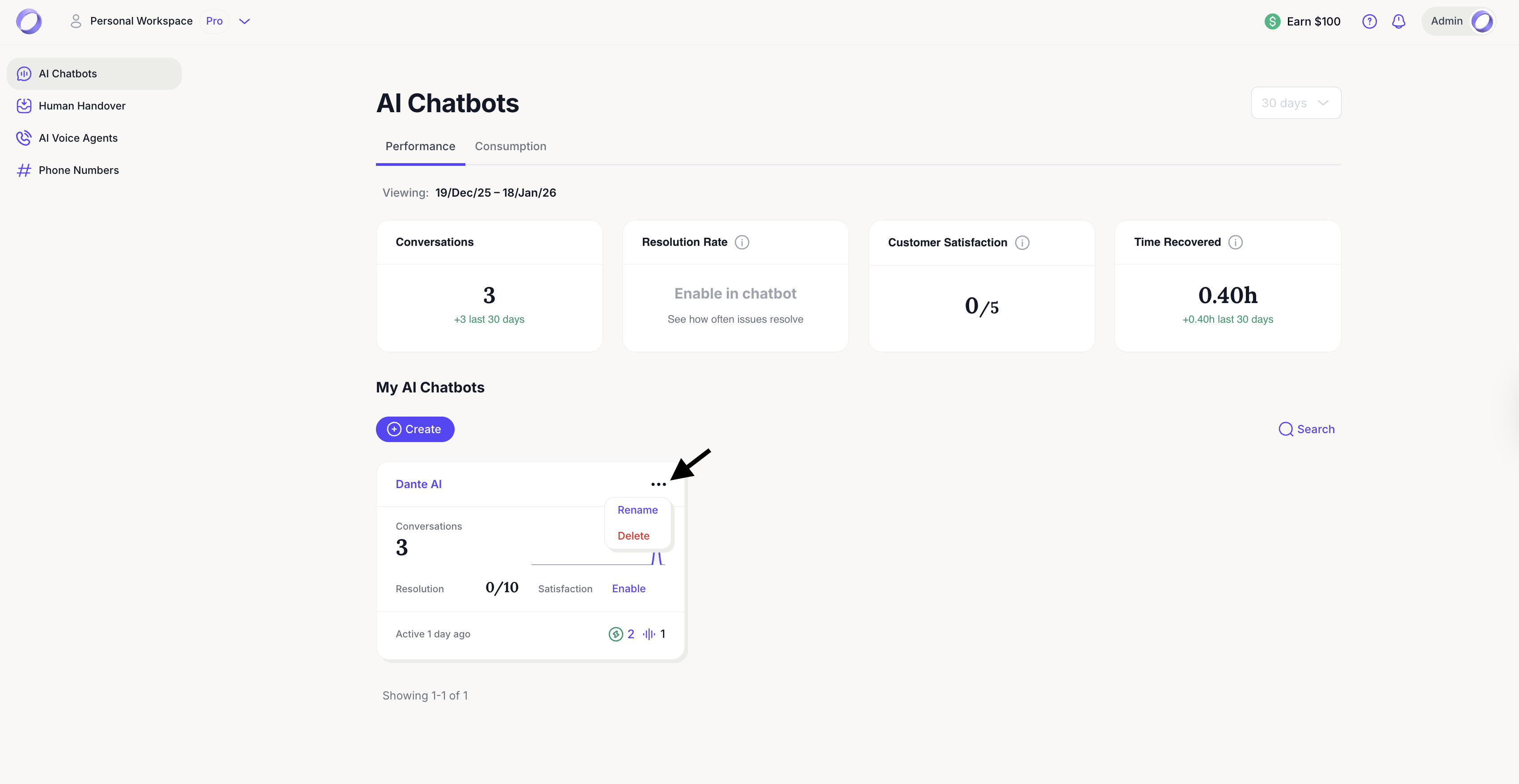
- Rename or delete AI chatbots
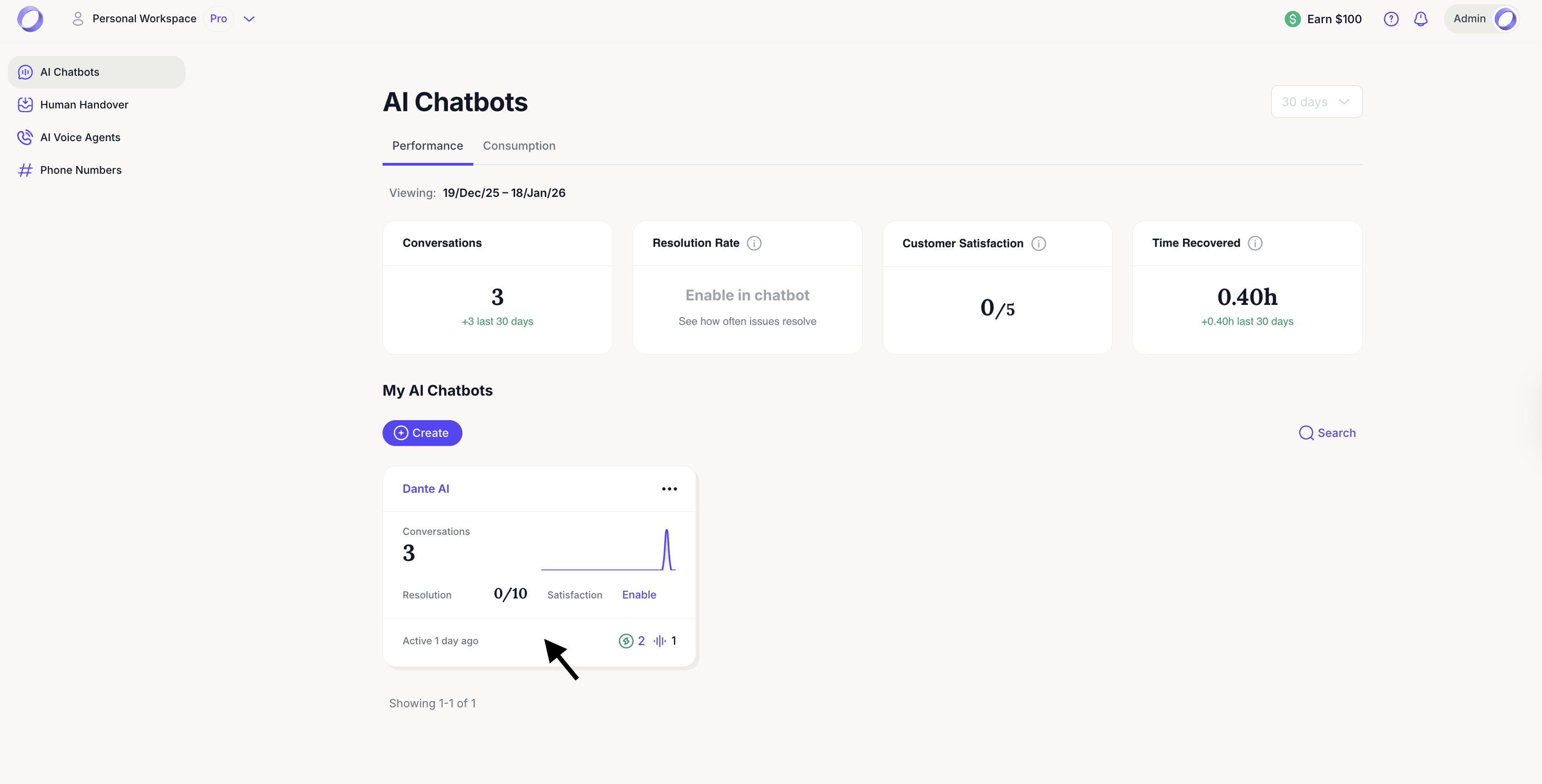
- Quickly see each chatbot’s status and activity
- Create a new AI chatbot at any time

Performance and consumption insights
At the top of the Workspace, you can switch between:
- Performance to monitor conversations, resolution rate, satisfaction, and time saved
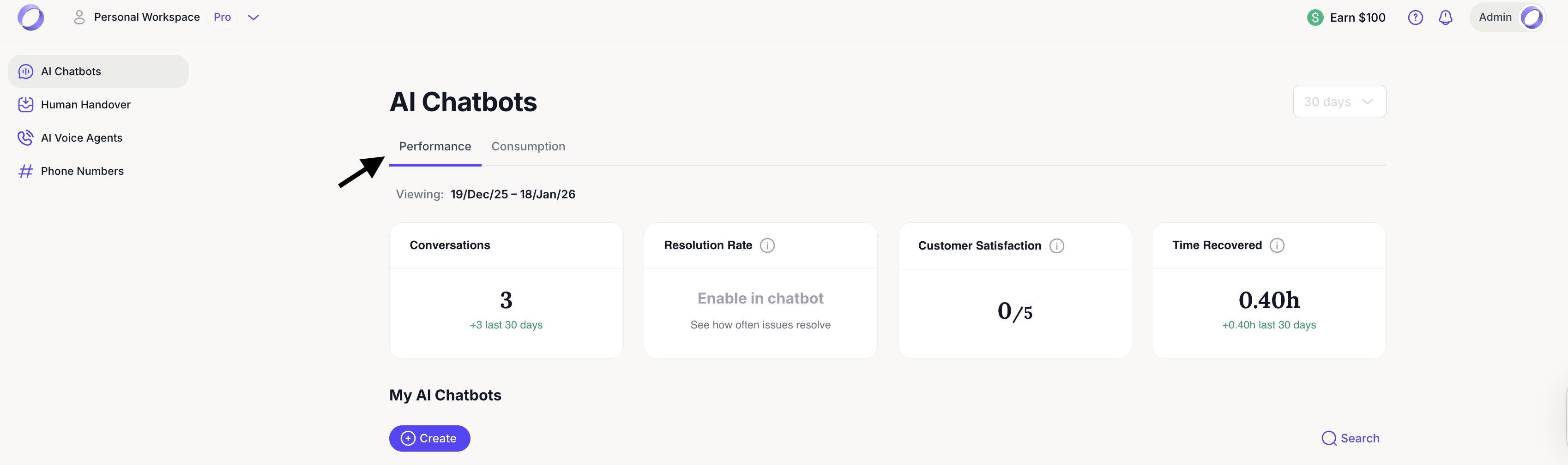
- Consumption to track credit usage and overall consumption
You can also filter data by time period, allowing you to review performance and usage over specific date ranges.
Dashboard vs Workspace
- The Workspace is where you manage, organize, and monitor all AI chatbots at a high level.
- The Dashboard appears after you click on a specific AI chatbot and is where you edit, customize, and configure that chatbot in detail.

Editing an AI chatbot
To edit an AI chatbot:
- Simply click on the chatbot from the Workspace
- You’ll be taken directly to its Dashboard, where you can manage memory, styling, power-ups, integrations, and more
This structure makes it easy to switch between monitoring performance and making updates as your needs evolve.
Next steps: Getting started with your AI chatbot
Now that you’re familiar with the Dante AI interface, the next step is to start working with your AI chatbot.
Continue toGetting started with your AI chatbotto learn how to access your chatbot, upload data, and begin building its memory.
For additional support and to connect with other users, join ourDiscord community.